
ESPRIT support and license management have officially transitioned from ESPRITWeb to the Hexagon Customer Portal (HCP).
The Hexagon Customer Portal provides a single location to manage your Hexagon Production Software resources, including:
- Technical support requests
- License management
- Software resources
Machine Digital Twin Center content will continue to be available through the Machine Digital Twin Center / ESPRITWeb. This can also be accessed through the Machine Center link inside HCP.
To maintain uninterrupted access to support and licensing tools, ESPRIT users should activate their HCP account.
How to Activate Your Hexagon Customer Portal Account
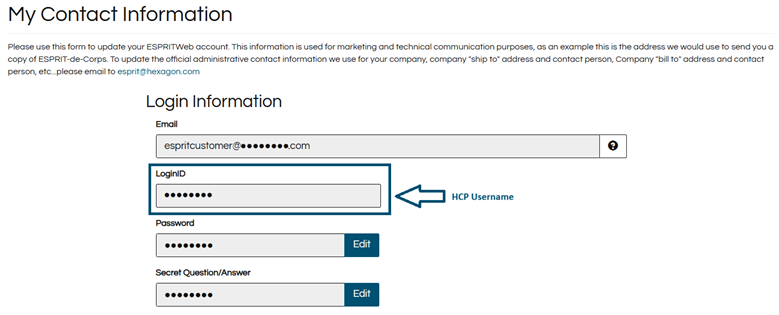
Your HCP account has already been configured using the same username from your ESPRITWeb account.
If you already know your ESPRITWeb username, you can continue directly to Step 2: Create Your HCP Password.
Step 1: Find Your ESPRITWeb Username
Go to ESPRITWeb:
https://espritweb.hexagon.com/Login
Log into your ESPRITWeb account.
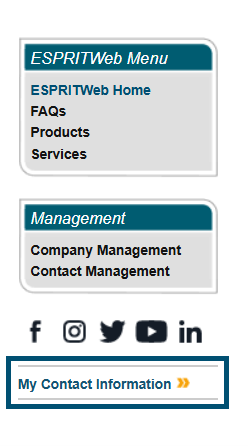
On the right side of the homepage, select:
My Contact Information
Your LoginID is your HCP username.
Step 2: Create Your HCP Password
Open the Hexagon Customer Portal password setup page:
https://customers.ps.hexagonmi.com/Public/PasswordResetEW.aspx
Enter your username.
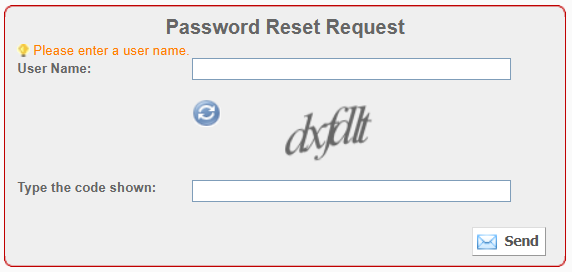
Complete the verification code.
Click Send.

You will receive an email from:
with a link to create your new password.
If you do not see the email, please check your Junk/Spam folder.
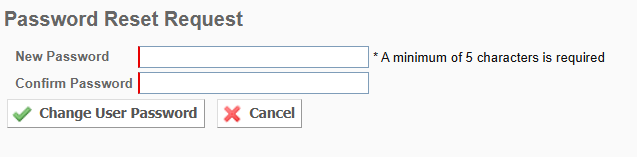
After opening the link, create your new password and select:
Change User Password
Your account setup is now complete.
You can now sign into the Hexagon Customer Portal using your username and new password.
How to Submit a Support Case in HCP
After activating your account, support requests will now be submitted through the Hexagon Customer Portal.
Sign into HCP:
https://customers.ps.hexagonmi.com/public/Login.aspx
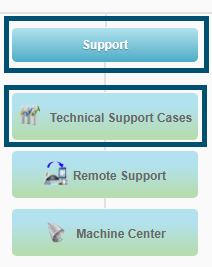
Under the Support menu, select:
Technical Support Cases
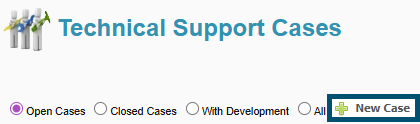
This page displays support requests associated with your company.
Select:
New Case
Creating Your Support Case
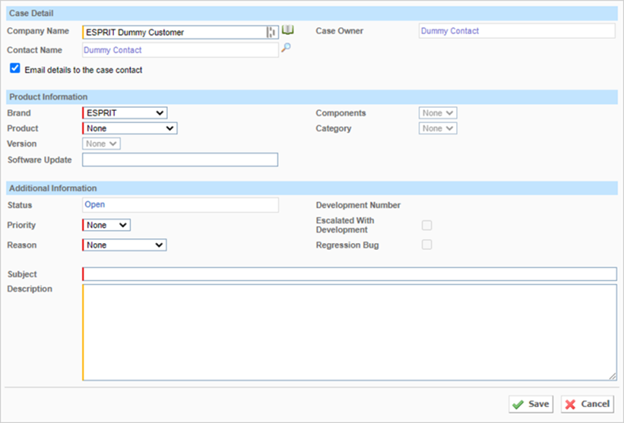
Complete the required case information.
Brand:
Select ESPRIT
Product:
Select ESPRIT EDGE
Version:
Enter the software version/build number.
You can find your version by opening ESPRIT and selecting:
Help > About ESPRIT
Component:
Select the category related to your request.
Priority:
Choose Critical, High, Medium, or Low.
Reason:
Select the reason for your request:
- Bug: Software malfunction
- Enhancement: Product improvement request
- Support: General assistance
Subject:
Enter a brief title describing the issue.
Description:
Provide additional details about your technical issue, question, or request.
Submit Your Case and Attach Files
Once the information has been entered, click:
Save
Your request will automatically be sent to the appropriate support team.
You will receive an email confirmation with your case number and a direct link to your support request.
Please add:
as a safe sender to prevent support notifications from being sent to your Junk folder.
If you need to provide additional files, open your case and select:
Add Attachment

Examples of helpful attachments:
- ESPRIT Pack & Save files
- Post processors
- NC code examples
- Supporting documentation
Important: Do not upload ITAR-sensitive data.
PMT Is Here to Help
PMT will continue assisting customers throughout this transition.
If you have questions about activating your Hexagon Customer Portal account, submitting cases, or accessing your software resources, please contact the PMT support team at support@pmtechnologies.com
Recent Posts
-
ESPRIT EDGE 2026.3: New Features & What You Need to Know
-
How to Set Sub Spindle Pickup Reference Positions in ESPRIT EDGE
-
PMT and Morphos 3D Partner at IMTS 2026 to Connect CAD, CAM, and ERP
-
ESPRIT EDGE Toolpaths Grayed Out? Here’s How to Fix It
-
What Is VISI? An Introduction to CAD/CAM for Mould & Die Manufacturing