
Creating a custom tool in ESPRIT EDGE allows you to accurately simulate specific tool geometries, such as an insert drill, by using a 3D CAD model provided by a manufacturer. Follow these steps to translate a solid model into a functional custom tool.
Import Your Geometry
The first step is to bring your tool geometry into the software.
- File Selection: You can import various CAD files such as STL, STP or IGES etc directly from the manufacturer’s website.
Align the Tool
Your tool must be aligned correctly to extract an accurate profile.
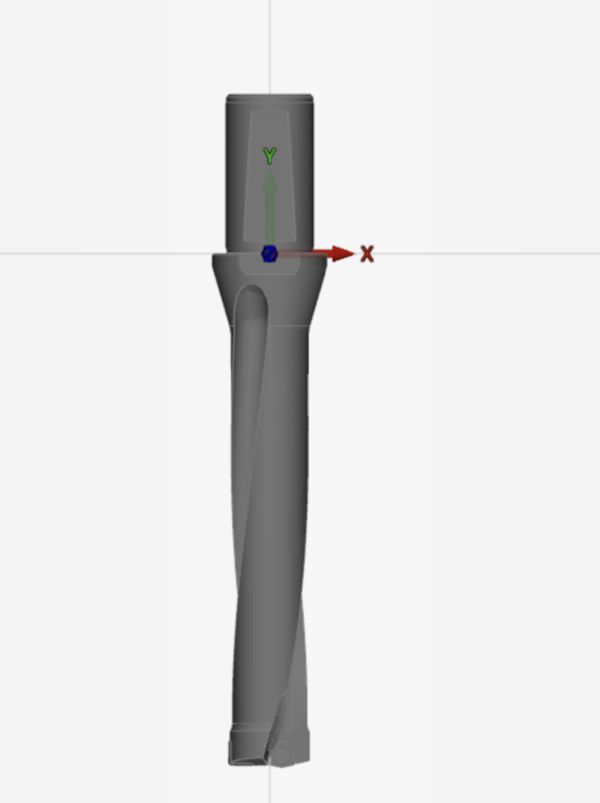
Extract the 2D Profile
Once aligned, you need to generate a 2D representation of the tool.
- Turning Profile: Use the Turning Profile function under the Geometry tab.
- Selection: Select the entire part and designate the "Front Face" as the type to create the geometry profile.
Refine and Translate the Profile
The extracted profile requires adjustments to meet ESPRIT EDGE requirements.
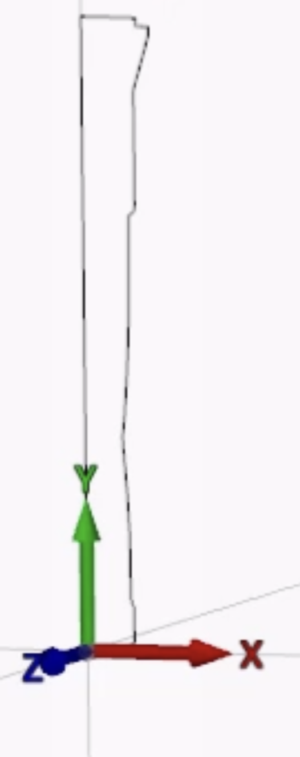
- Translation: Use the Move-Translate command to shift the profile in the Y-axis so that the tool tip starts exactly at Y0.
- Closing the Profile: Use the Infinite Line and Trim functions to ensure the profile is closed and follows a continuous path.
TIP: The profile must be monotonic in both X and Y and should not contain concavities or overlap the holder profile.
Define Shank and Insert
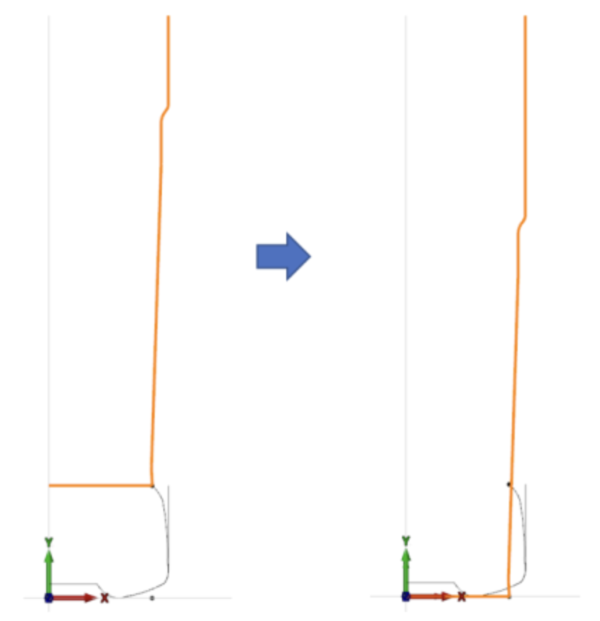
To correctly define the tool's cutting and non-cutting sections, you must separate the shank from the insert.
- Identify the Limit Point: Define a point where the insert (cutter) ends and the shank begins.
- Segmenting: Use the Trim and Point functions to split the 2D profile into two distinct sections and move them to their respective layers.
- Translate: Translate shank profile along Y to start at Y0.
Save and Load into Tool Manager
Finally, export your profiles as tooling data.
- Export as .ECT: Select each profile (Shank and Insert) separately and use Save As to export them as Tool Geometry Files (*.ect).
- Tool Manager: In the Tooling menu, create a Custom Mill. Under the Shank and Cutter tabs, set the type to "Custom" and browse for the corresponding .ect files you created.
- Cutting Length: Ensure the "Cutting Length" in the Tool Manager matches the exact Y-coordinate length of your insert profile.
By following these simple steps, you can turn any manufacturer’s solid model into a precise custom tool for your ESPRIT EDGE operations. For a visual walkthrough of this process, be sure to check out our detailed video tutorial.