
Measurement tools in NCSIMUL help users verify dimensions, distances, and geometry directly on the stock model and the part model allowing quick validation without going back to the CAD/CAM system. This helps detect errors early, confirm machining accuracy, and ensure the final part matches the design.
Pre-defined measurement tools available in NCSIMUL include:
- Distance – Measures the distance between two points, edges, or faces. Useful for checking lengths, gaps, and clearances.
- Angle – Calculates the angle between two surfaces. Helps verify chamfers, tapers, and tool orientations.
- Radius / Diameter – Detects circular features and shows their radius or diameter, commonly used for holes, fillets, and arcs.
- Point Coordinates – Displays the exact X, Y, Z location of a selected point in the simulation.
- Thickness – Measures the shortest distance between two surfaces, useful for checking remaining stock or wall thickness.

These tools work by selecting geometry directly in the simulation window, after which NCSIMUL automatically calculates the value based on the current model state, whether it is the initial stock, in-process stock, or finished part.
In this article, we will be using some of these measurement tools to compare the values of rough machined stock vs the part model and print the results at the end.
Simulation:
Open the simulation process for your project in NC Simul. Since we are concerned with taking measurements in this section, it is recommended to switch to Table view in the 3D graphics window.
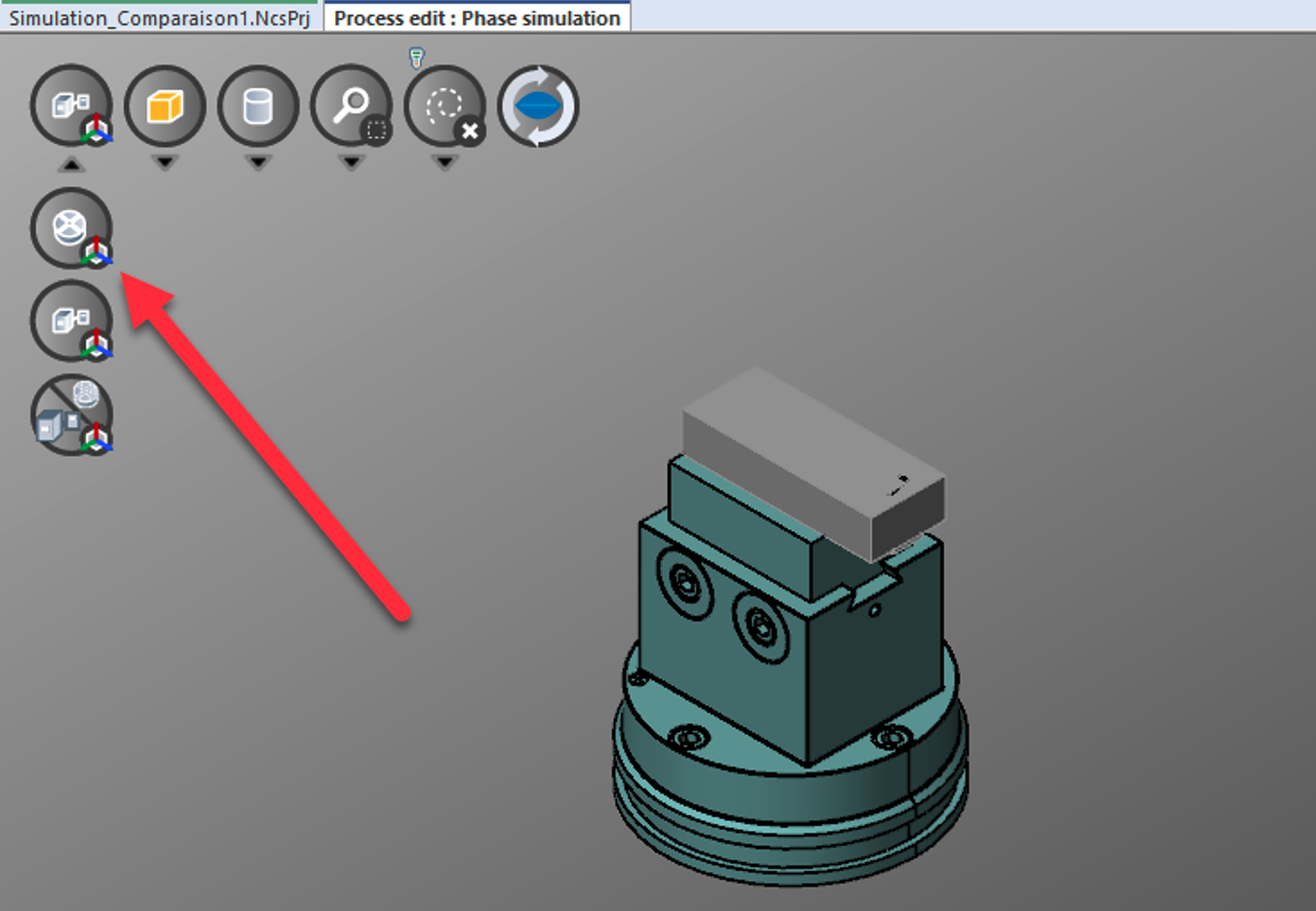
Run the simulation in Continuous or Break Point mode to show the results of the rough machined stock. If the measurements need to be taken for in-process stock, a break point can be inserted at any point in the NC Program and the simulation will be run in Break Point mode. This will allow the simulation to stop at that point for the user to take necessary measurements.
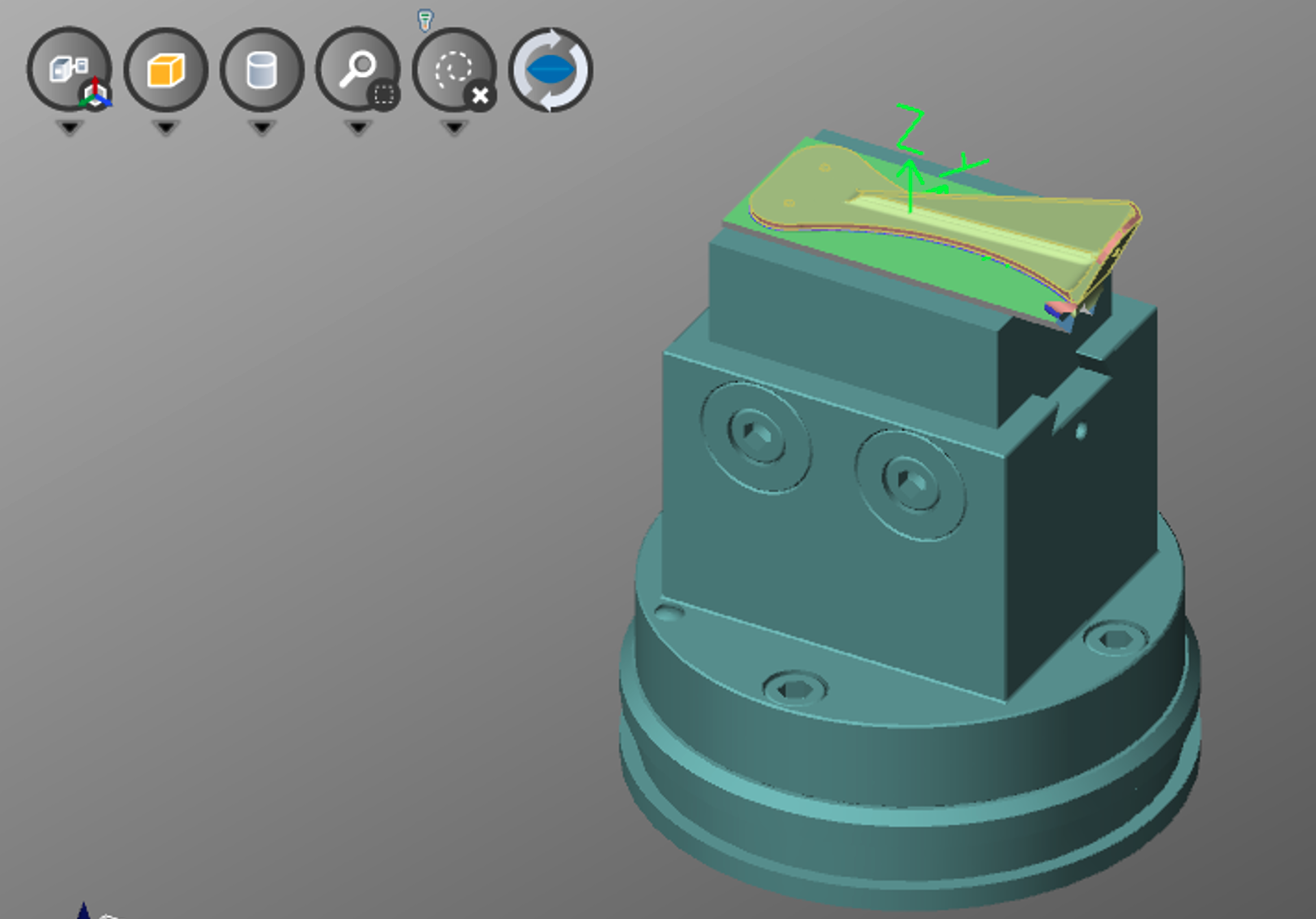
Measurements:
The measurements can now to taken on the rough machined stock and the part model. In this example, I will be using the Thickness and the Angle Measurement tools. Filter can be used to make sure the measurements are taken on the intended model.
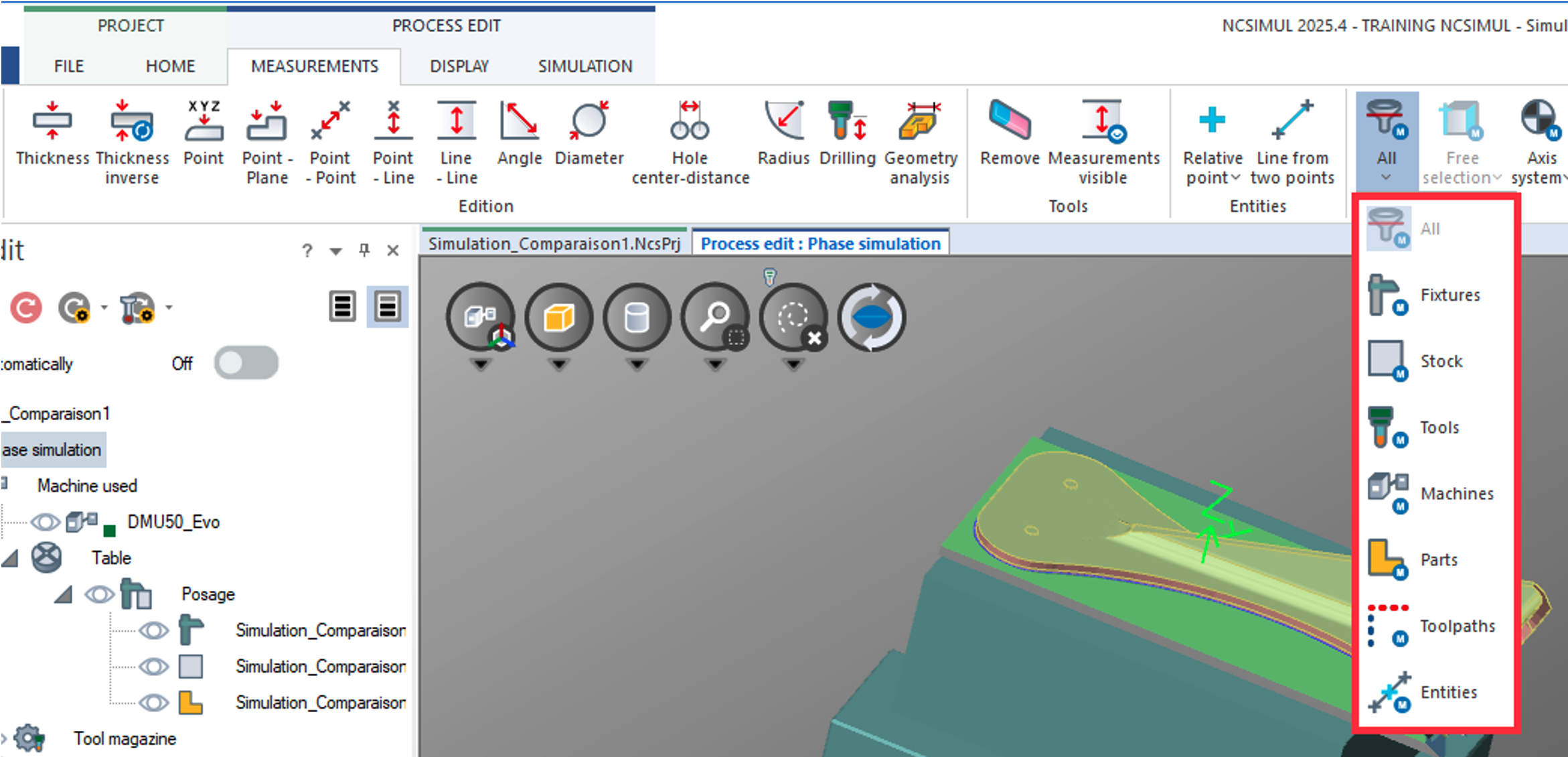
We will take measurements on the stock model first so select the Stock filter from the drop-down.
Enable the Thickness tool and select a point on the wall / feature you wish to measure.
Change the filter this time to make selections on the part model. Make sure the part model is displayed as Shaded in the 3D graphics window. While the Thickness feature is still active, make selections on the part model to record the values.
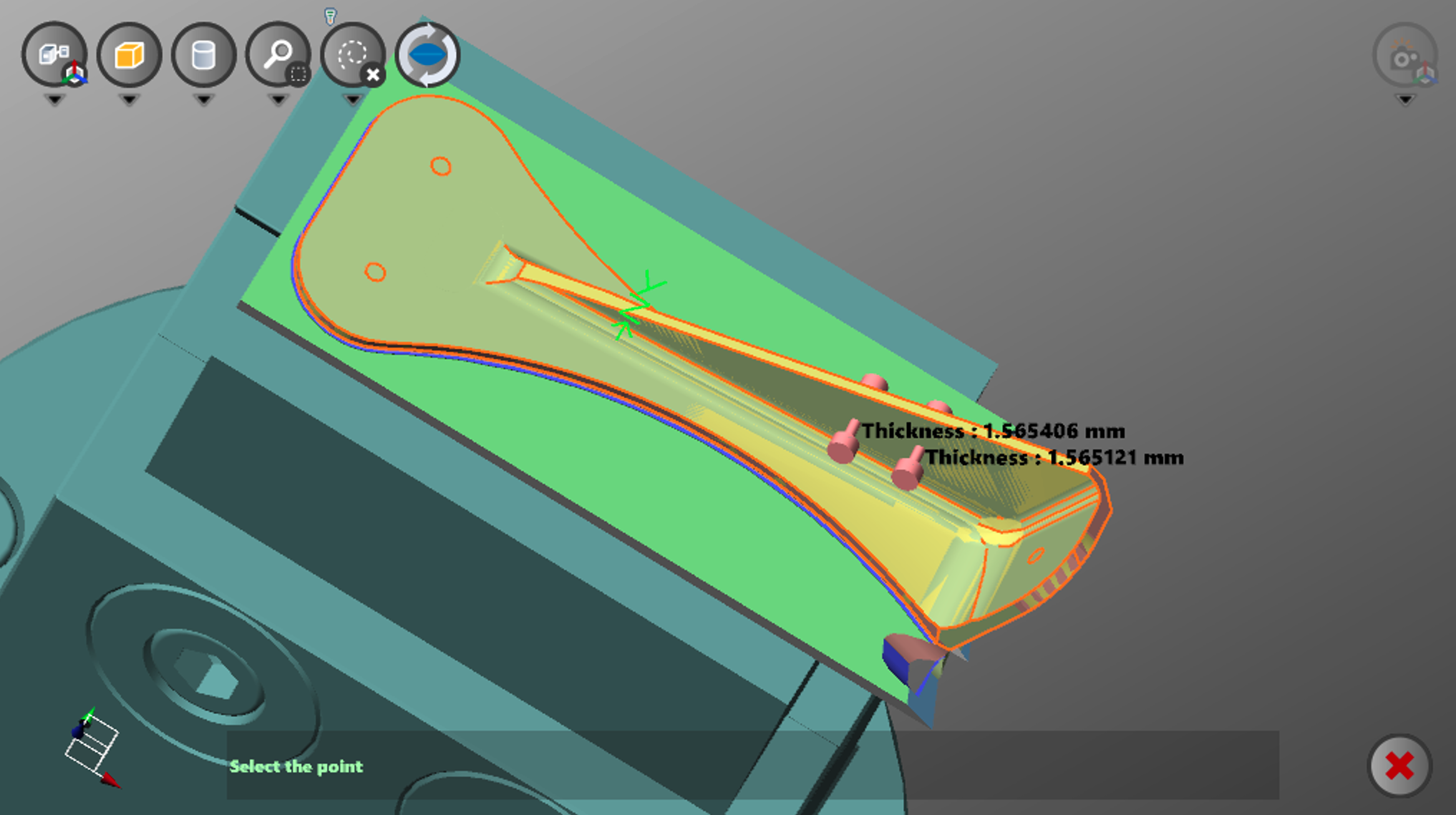
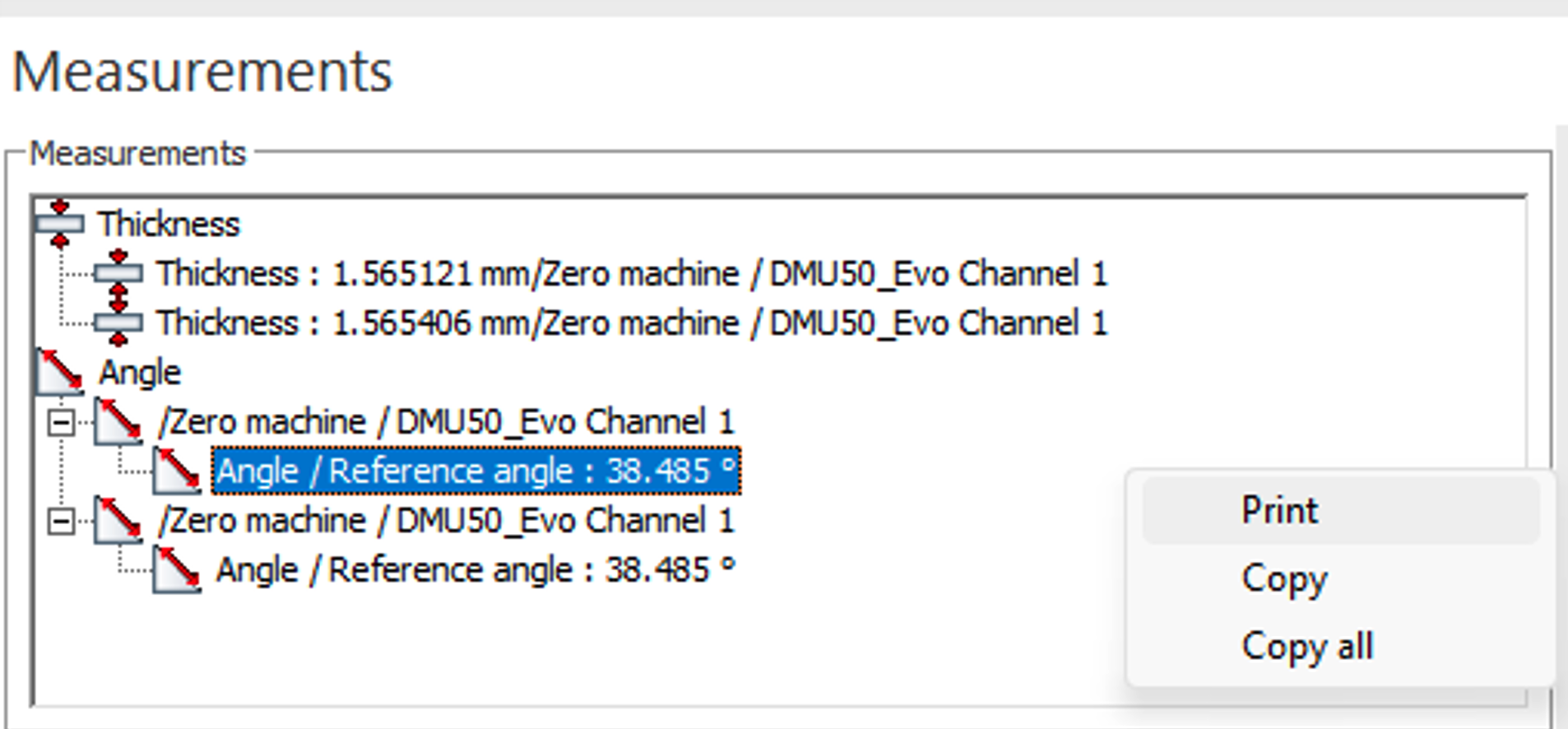
Click on the Red cross to disable the Thickness measurements. The measurement values for both stock and part model will also be recorded in the Measurements window.
We will now use the Angle Measurement tool to confirm the angle between two surfaces. Change the active filter to Stock again and enable the Angle Measurement tool.
Select the Reference surface and the Angle surface to measure the angle between the two.
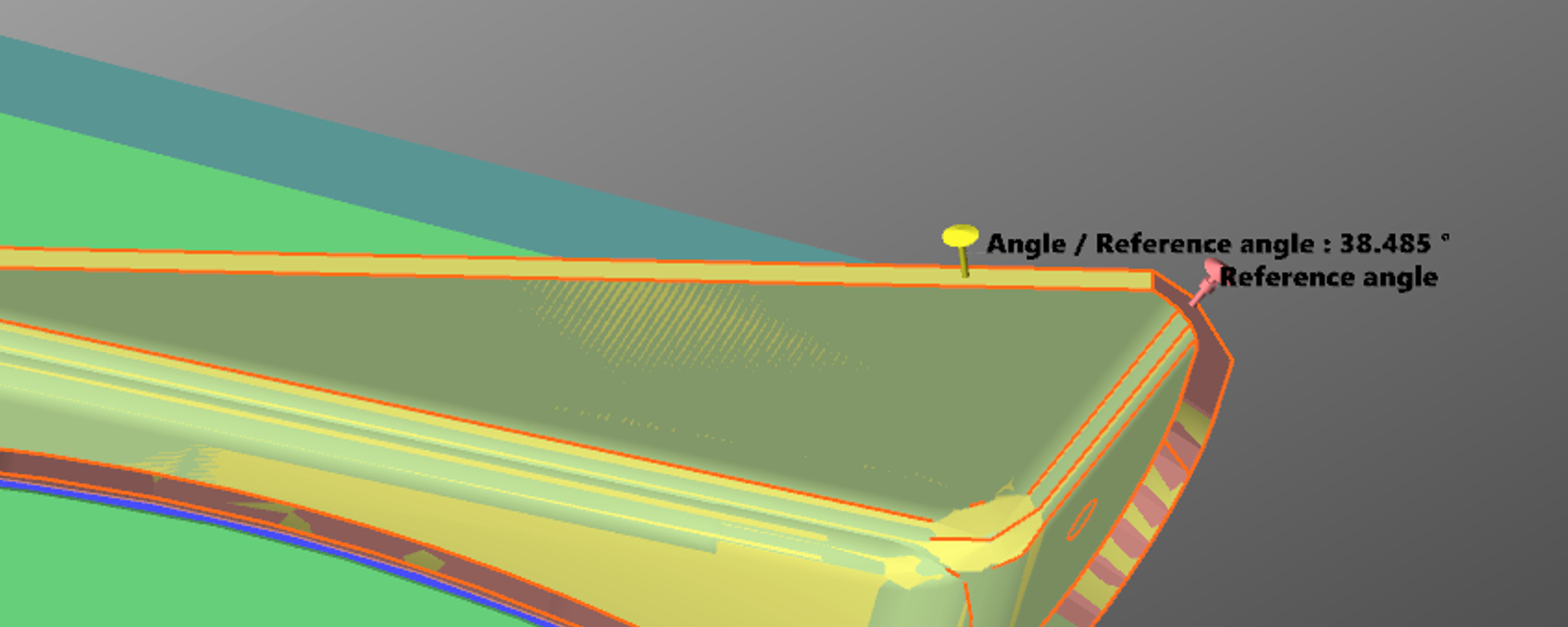
Repeat the same process but with the Part filter enabled this time. Make sure to reset the Angle measurement by cancelling and selecting the option again.
💡: The 3D graphics window could get crowded if you are taking multiple measurements. You could use the Measurements Visible tool to hide the previous recordings while still being able to see the current measurements.

The measurements will show in order they are taken in the Measurements window. The results can also be printed using the Print command in the Measurements window.
You can also watch our YouTube video to follow the same process.