
An intro to 5-axis composite cycles.
Written in as few words as possible…
1. Set your Workplane
-
- XYZ will work great for 360 Radial Surfacing
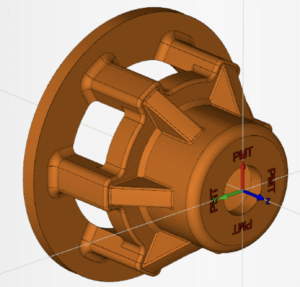
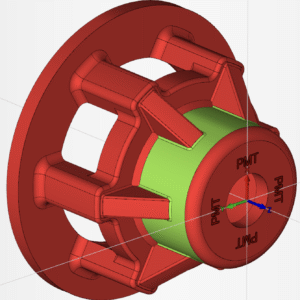
2. Create your FreeForm Features
-
- Select your Machined/Part surfaces
- Set all else to Check
3. Create your Projection/Drive Surface
-
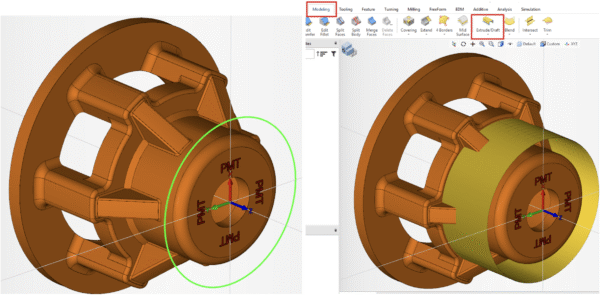
- Create a circle on the XYZ plane that’s slightly larger in diameter than the surface you want to machine.
- Extrude the circle using Extrude/Draft command found on the Surface toolbar under the Modeling tab
4. Select your FreeForm Feature, then open the Composite Cycle Found under the FreeForm tab. Below are the minimum changes made from the System Default.
a. ToolPath Tab
- Machining Pattern – Set this to Project Spiral
- Drive Surface – Select the cylindrical Surface you just made
- Cutting Direction – Set this in accordance with the surface Vector positions
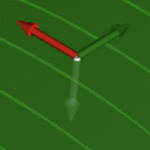
- Reverse Projection Side – Set this with respect to the white vector.
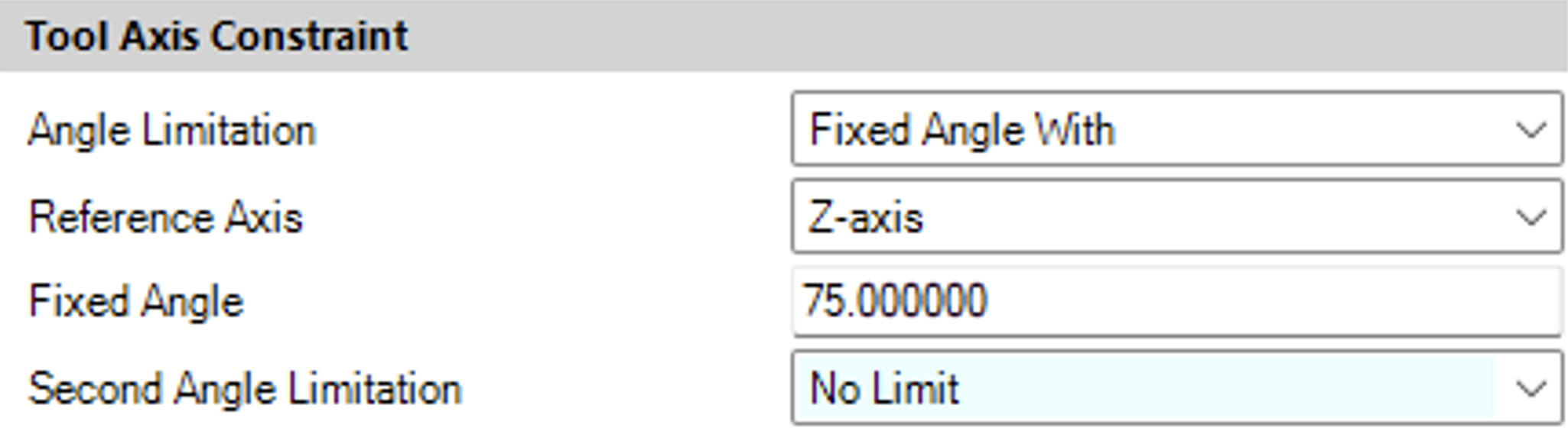
b. Orientation Tab
- Angle Limitation – Fixed Angle With
- Reference Axis – Z-Axis
- Fixed Angles – 75°
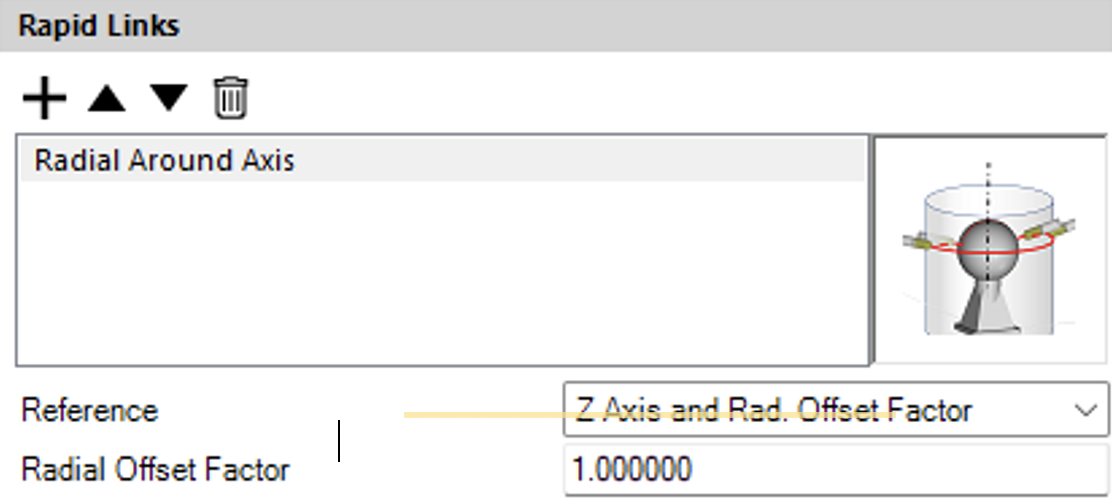
c. Links Tab
- Rapid Links – Radial Around Axis.
d. Hit OK
5. Simulate your masterpiece.
To get the full experience, check out the video to gain a complete understanding of how to easily generate a Radial 5 Axis toolpath utilizing the Composite Cycle.
Recent Posts
-
ESPRIT EDGE 2026.3: New Features & What You Need to Know
-
How to Set Sub Spindle Pickup Reference Positions in ESPRIT EDGE
-
PMT and Morphos 3D Partner at IMTS 2026 to Connect CAD, CAM, and ERP
-
ESPRIT EDGE Toolpaths Grayed Out? Here’s How to Fix It
-
What Is VISI? An Introduction to CAD/CAM for Mould & Die Manufacturing