
Using Draft Analysis in WORKNC for Smarter Toolpath Planning
Understanding surface draft is a critical step in evaluating part manufacturability and selecting the correct machining strategy. WorkNC’s Draft Analysis tool provides a powerful and visual way to analyze surface angles, identify undercuts, and validate machining accessibility before toolpaths are created.
In this article, we’ll walk through how to use the Draft Analysis tool in WorkNC, explain what the visual indicators mean, and discuss how this information helps guide machining decisions.
Accessing the Draft Analysis Tool
To begin, navigate to the Graphical tab in WorkNC and select Analysis. From the available analysis options, choose Draft.
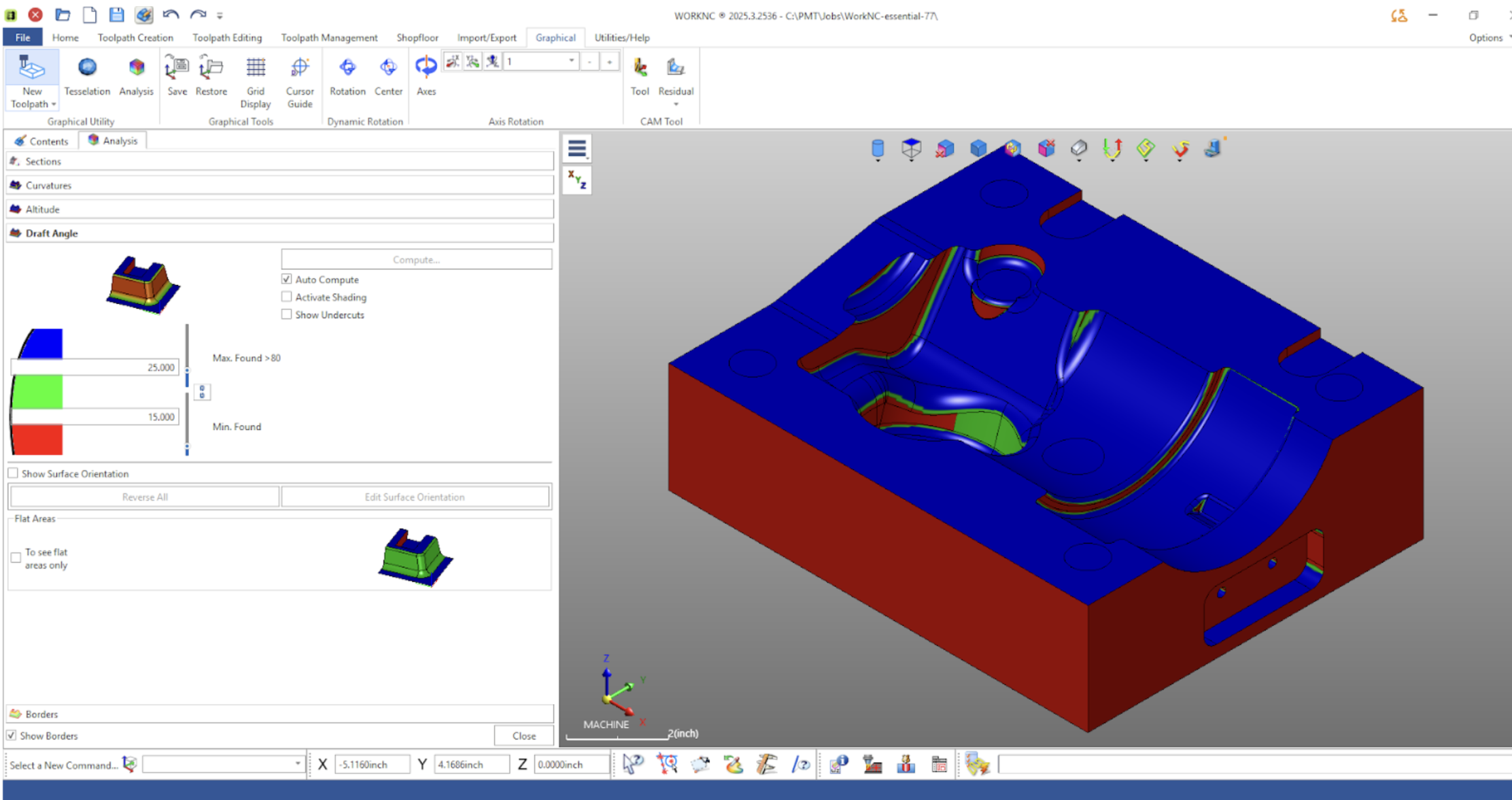
Once activated, the Draft Analysis panel allows you to evaluate surface angles relative to the Z-axis using a color-coded visualization applied directly to the model.
Understanding Draft Angle Visualization
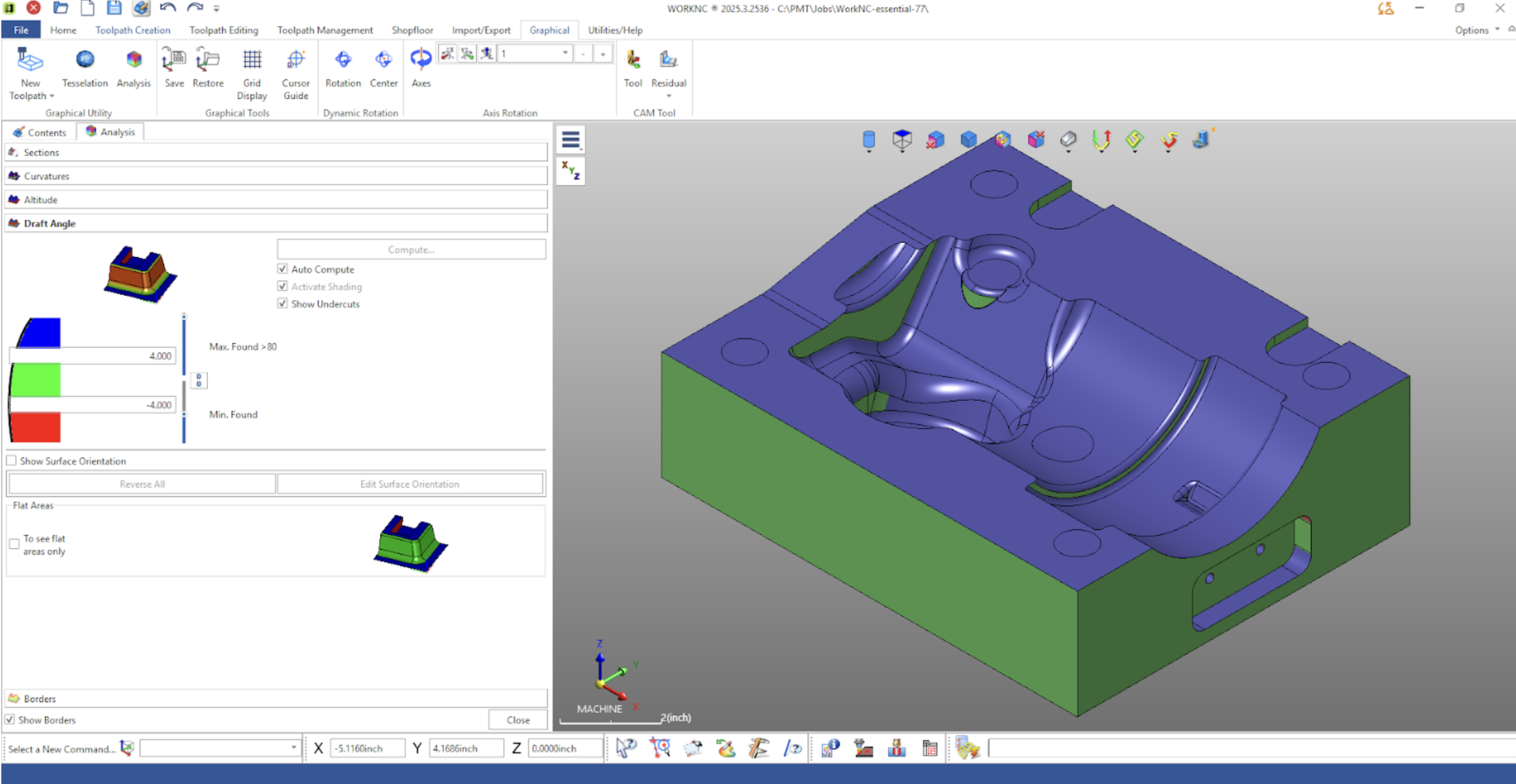
When Draft Analysis is computed, WorkNC colors the model based on surface slope:
- Blue – Surfaces steeper than the upper limit
- Green – Surfaces that fall within the defined acceptable draft range
- Red – Surfaces below the minimum draft angle
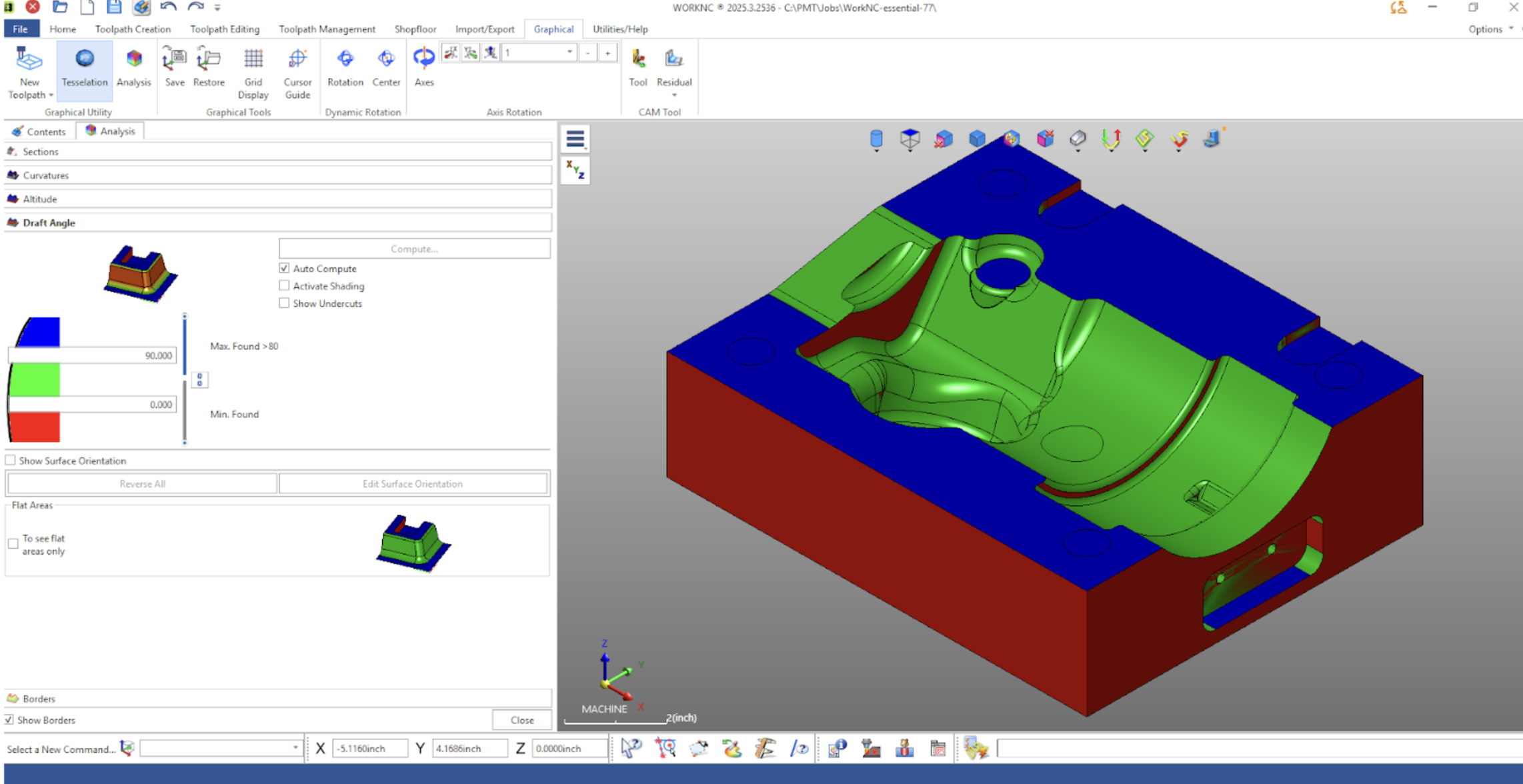
A common starting point is to set the lower limit to 0° and the upper limit to 90°. In this configuration:
- Vertical walls appear red (0° draft),
- Flat surfaces appear blue (90°),
- Transitional or angled surfaces appear green.
This color-based feedback makes it immediately clear which areas are machinable from the current setup and which may require alternative strategies.
Interacting With Surface Geometry
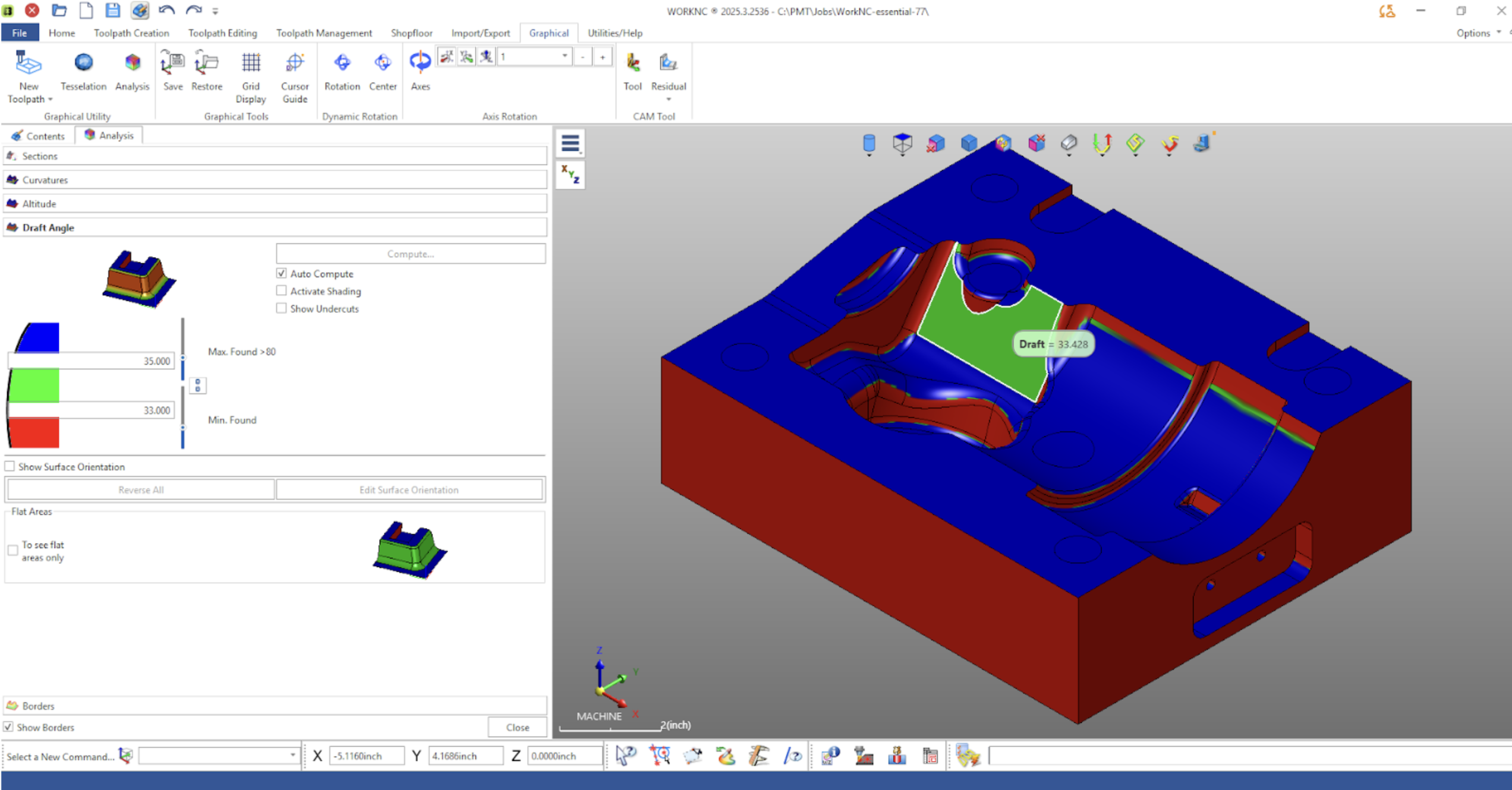
One of the most useful features of the Draft tool is the ability to interactively probe surfaces. By clicking directly on geometry, WorkNC displays the exact draft angle at that point. This allows programmers to:
- Verify borderline draft conditions
- Identify shallow or steep transitions
- Confirm whether surfaces fall within tooling or process limits
If you are looking for a very specific slope, you can tighten the upper and lower limits to isolate surfaces within a narrow angular range.
Auto Compute and Performance Considerations
The Auto Compute option recalculates draft values automatically whenever a change is made. For most parts, this is ideal and provides immediate feedback.
However, when working with very large or complex models, disabling Auto Compute and manually triggering the calculation can improve performance and responsiveness.
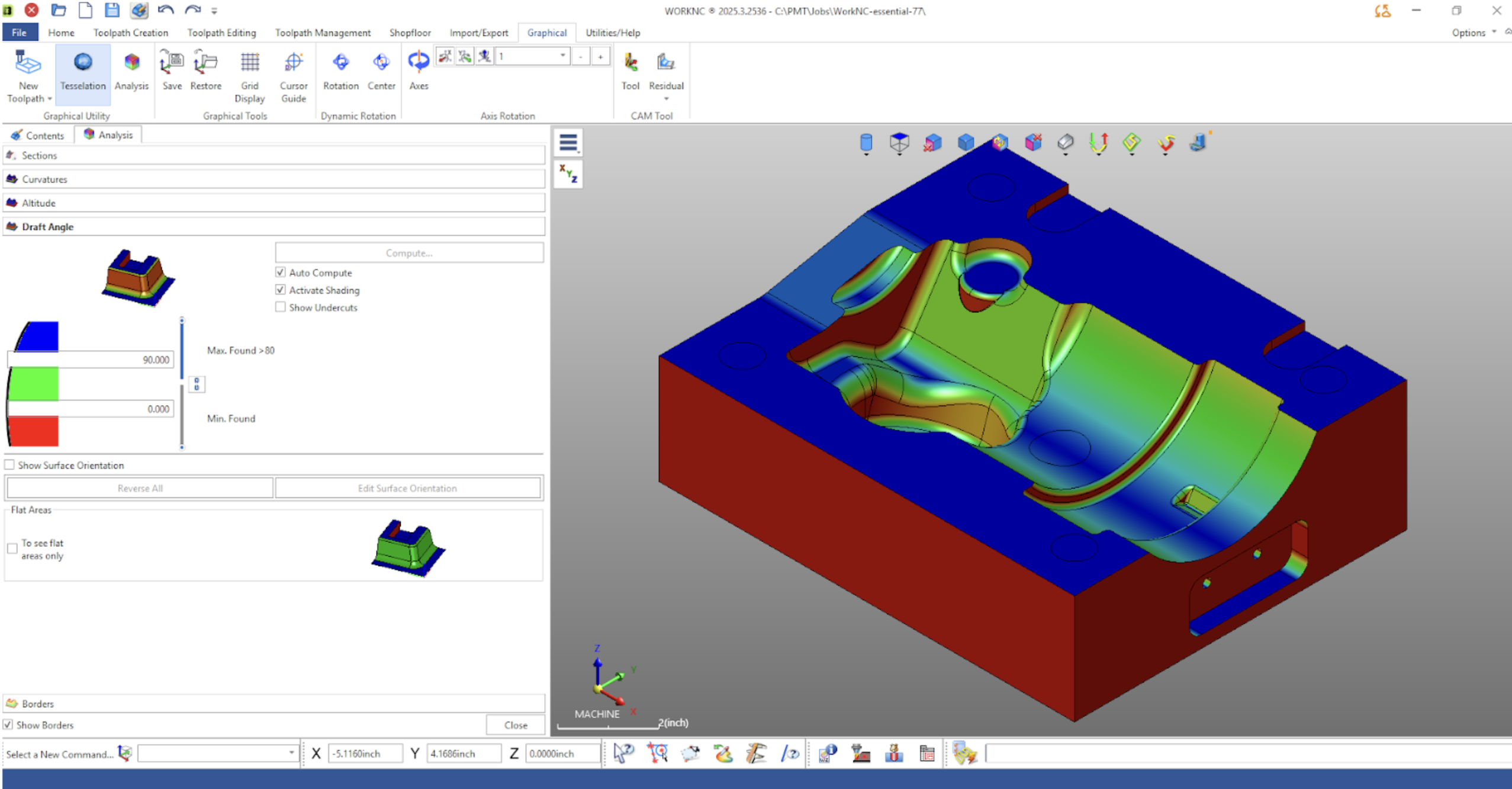
Activating Shading
The Activate Shading option enhances visual clarity by applying smooth color gradients to curved surfaces. This is especially helpful in areas where draft transitions gradually, such as fillets or sculpted contours.
Undercut Detection
The Show Undercuts option highlights areas that cannot be machined from the current orientation. These regions appear in a distinct peach color and indicate where additional setups, alternative tool orientations, or multi-axis strategies may be required.
Identifying undercuts early in the process prevents costly rework and helps determine whether 3-axis, 5-axis, or specialty tooling will be required.
Surface Orientation Controls
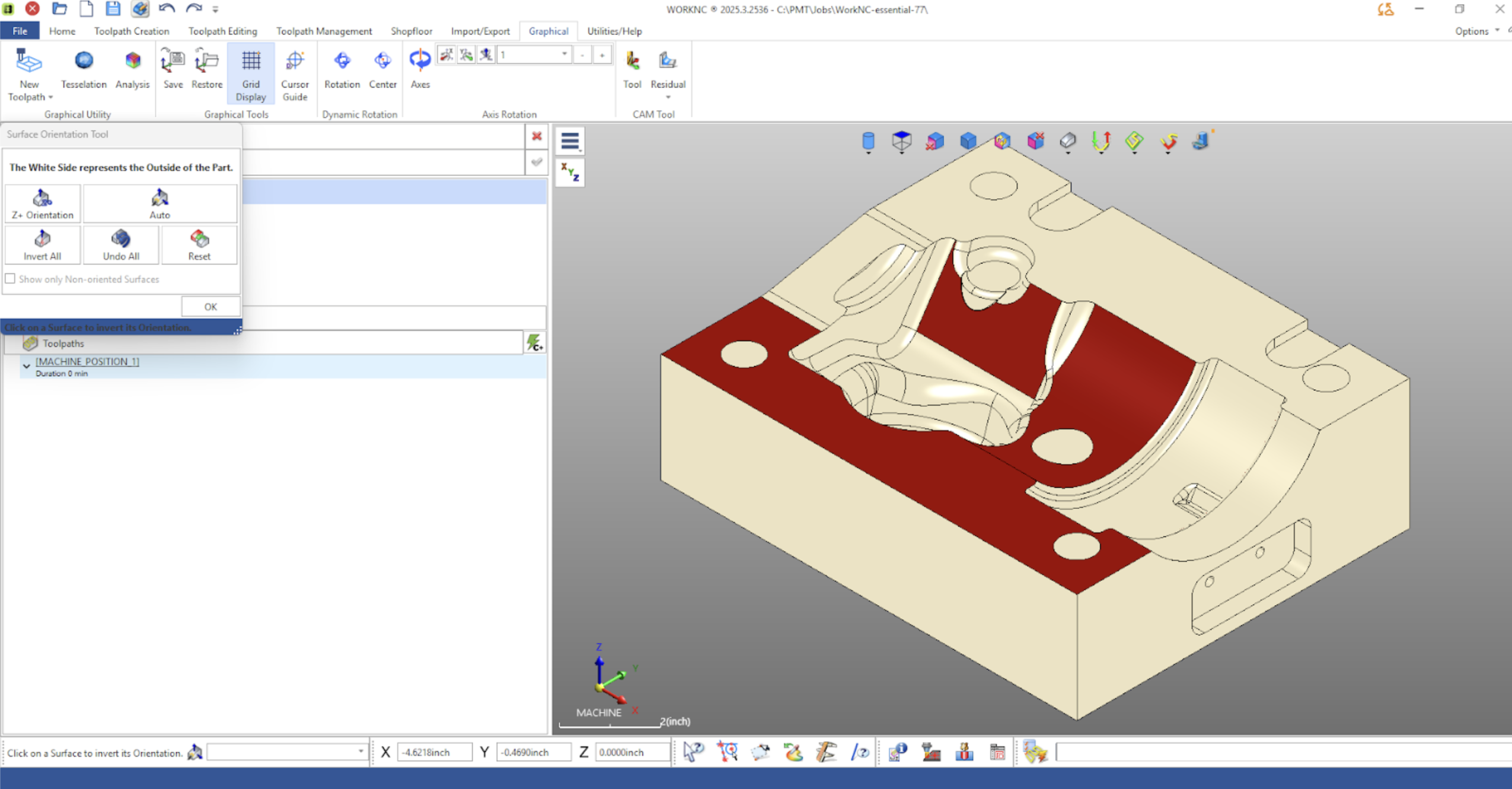
The Show Surface Orientation option allows you to visualize and edit surface directions. When enabled, surfaces appear in neutral tones and can be flipped if needed. This is particularly useful in advanced 5-axis workflows where surface normal direction affects toolpath generation.
Identifying Flat Areas
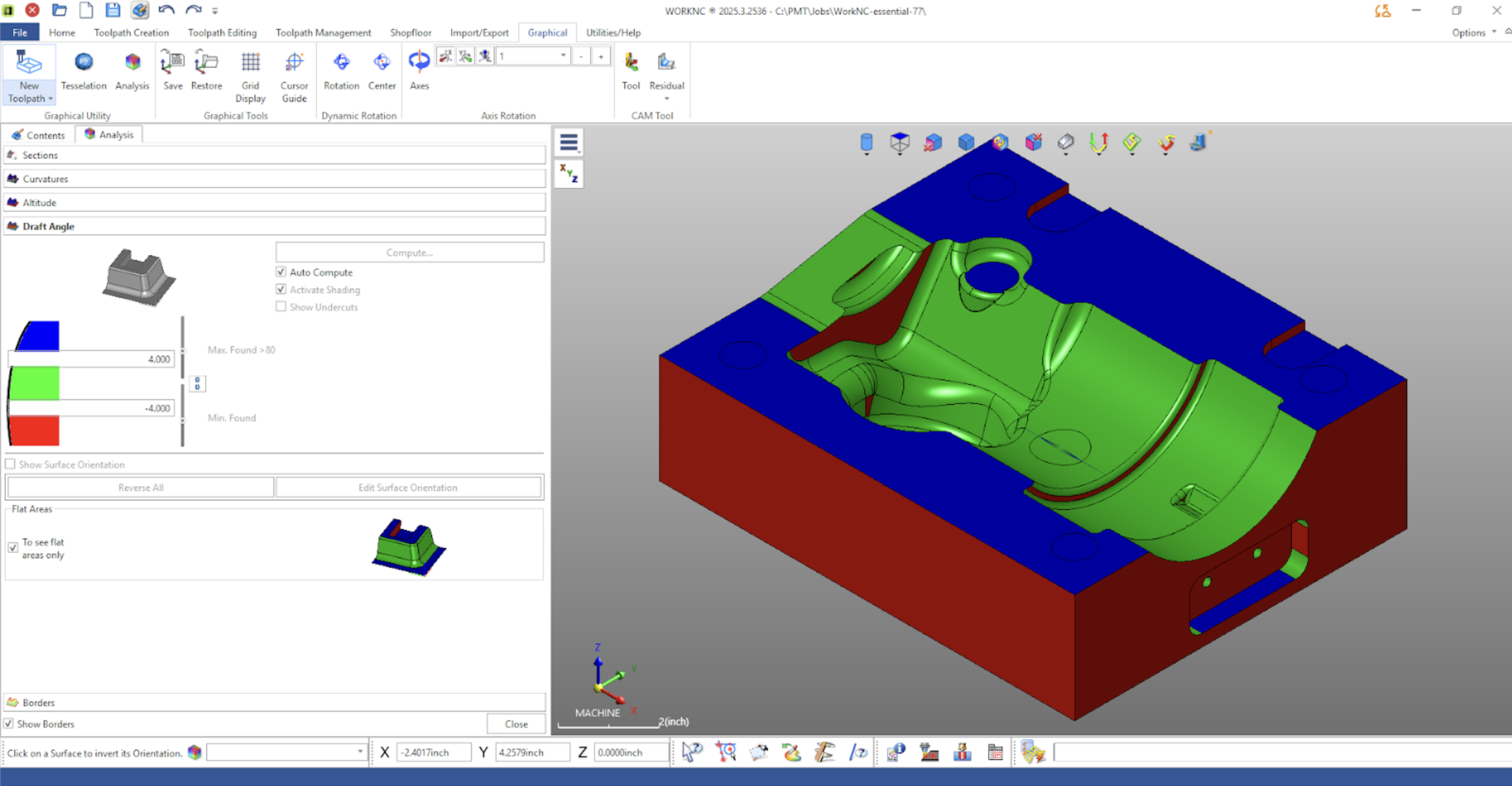
The Flat Areas option automatically highlights surfaces with near-zero or near-90° draft angles. This is useful for quickly identifying planar faces that may require facing operations or that can serve as reference surfaces for setup and fixturing.
Why Draft Analysis Matters
Draft analysis is often one of the first and most important steps in machining strategy development. It allows programmers to:
- Identify problem areas early
- Select appropriate tooling and tool orientations
- Avoid collisions and unmachinable features
- Reduce trial-and-error during programming
- Improve overall machining efficiency
By visualizing slope transitions and undercuts before creating toolpaths, programmers can make informed decisions that reduce cycle time and improve part quality.
Final Thoughts
The Draft Analysis tool in WorkNC provides clear, actionable insight into part geometry. Whether you’re evaluating mold geometry, planning multi-axis strategies, or validating accessibility, this tool helps streamline decision-making early in the programming process.
Used correctly, it becomes an essential step in building efficient, reliable toolpaths and ensuring successful machining outcomes.
If you have questions about applying draft analysis to your specific workflow, feel free to reach out — and as always, happy programming.