
In this guide, we will walk through the Copy Previous Setup workflow in Esprit Edge. This method allows the system to automatically transfer the remaining stock from one setup to the next, keeping the simulation up to date and eliminating the need for manual stock exports. The result is a cleaner workflow, fewer files to manage, and more reliable verification between setups.
- Create the Second Setup
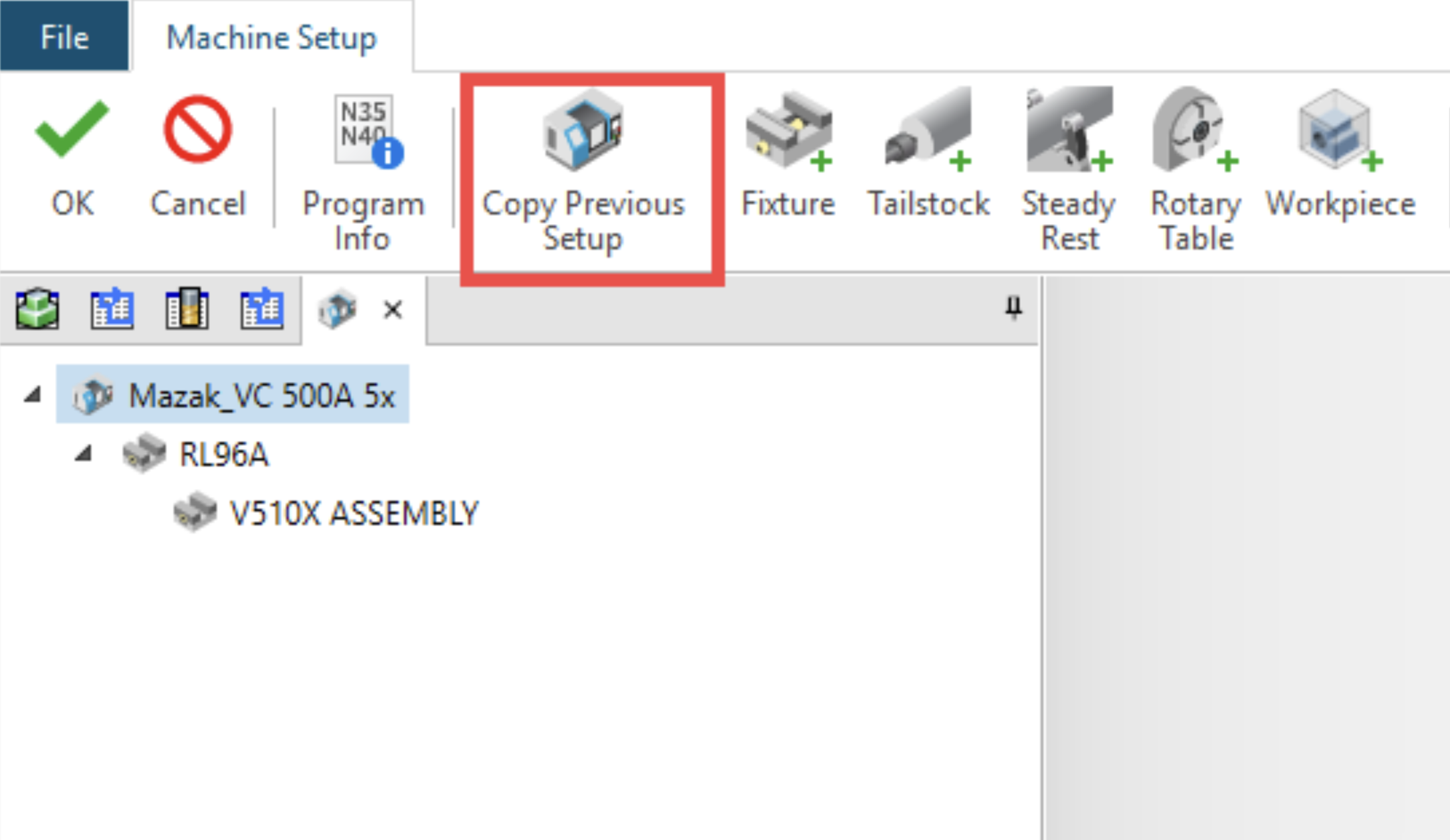
Once the programming on Setup 1 is finished, we can use the Add Setup command to create additional setup. In this additional setup, use the Copy Previous Setup command which automatically uses the same workpiece, remaining stock and fixture.
- Adjust the Workpiece
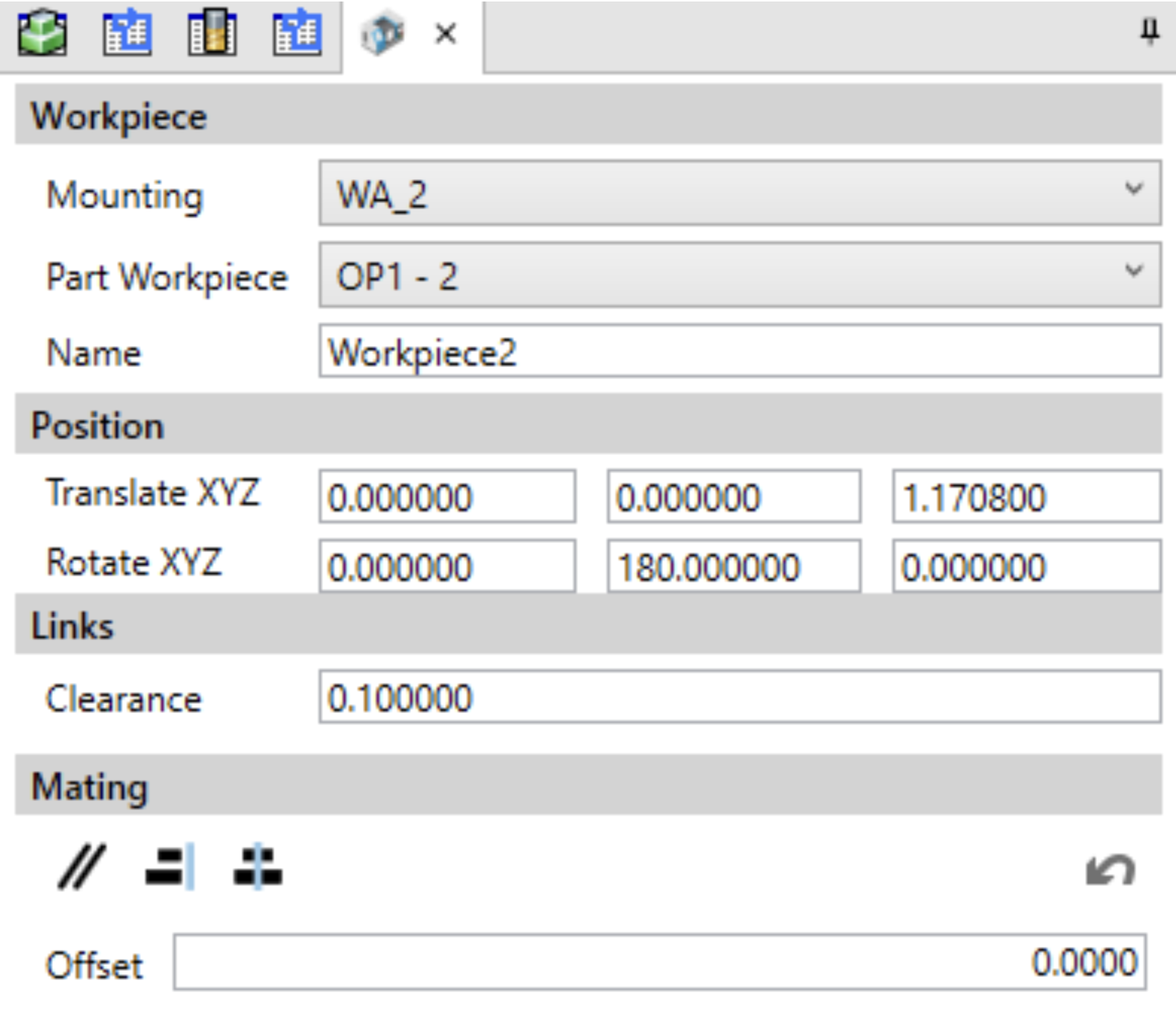
Once the new setup is added, edit the new workpiece and change the Mounting and the Part Workpiece reference. Esprit Edge adds a new Mounting position for the second workpiece as it is considered a different workpiece essentially. Switch to the new Mounting Position and the Part Workpiece. Change the workpiece name to avoid any confusion. Add the rotation to flip the Workpiece 180° in axis that fits your specific fixture.
Do the Workpiece Alignment using the Alignment Mating tool. Hold Ctrl to select the relevant face of your part and the corresponding face of your fixture to "seat" the part correctly.
- Adjust the Datum
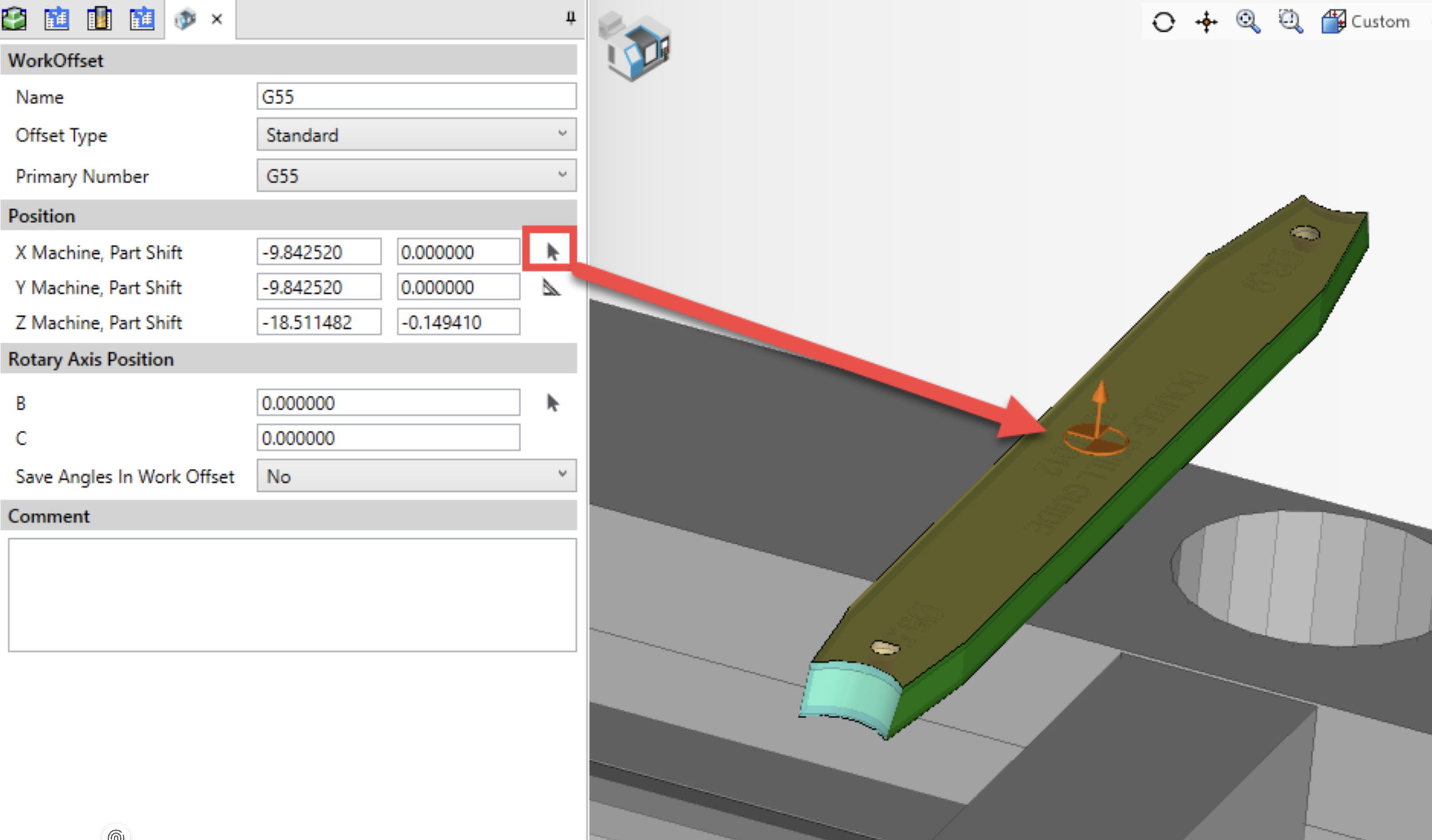
After adjusting the workpiece, we now need to define the datum for the Setup 2. Select your datum in the Machine Setup and click Edit. Change the Primary Number to a different one from Setup 1. In this example, I am switching the datum from G54 to G55 using the drop-down menu.
Next, we need to define the position of the new datum. We can either enter the Machine XYZ values or use the Digitize command to select the new Z-zero. You can pick the top face of the stock or a specific feature on the part model.
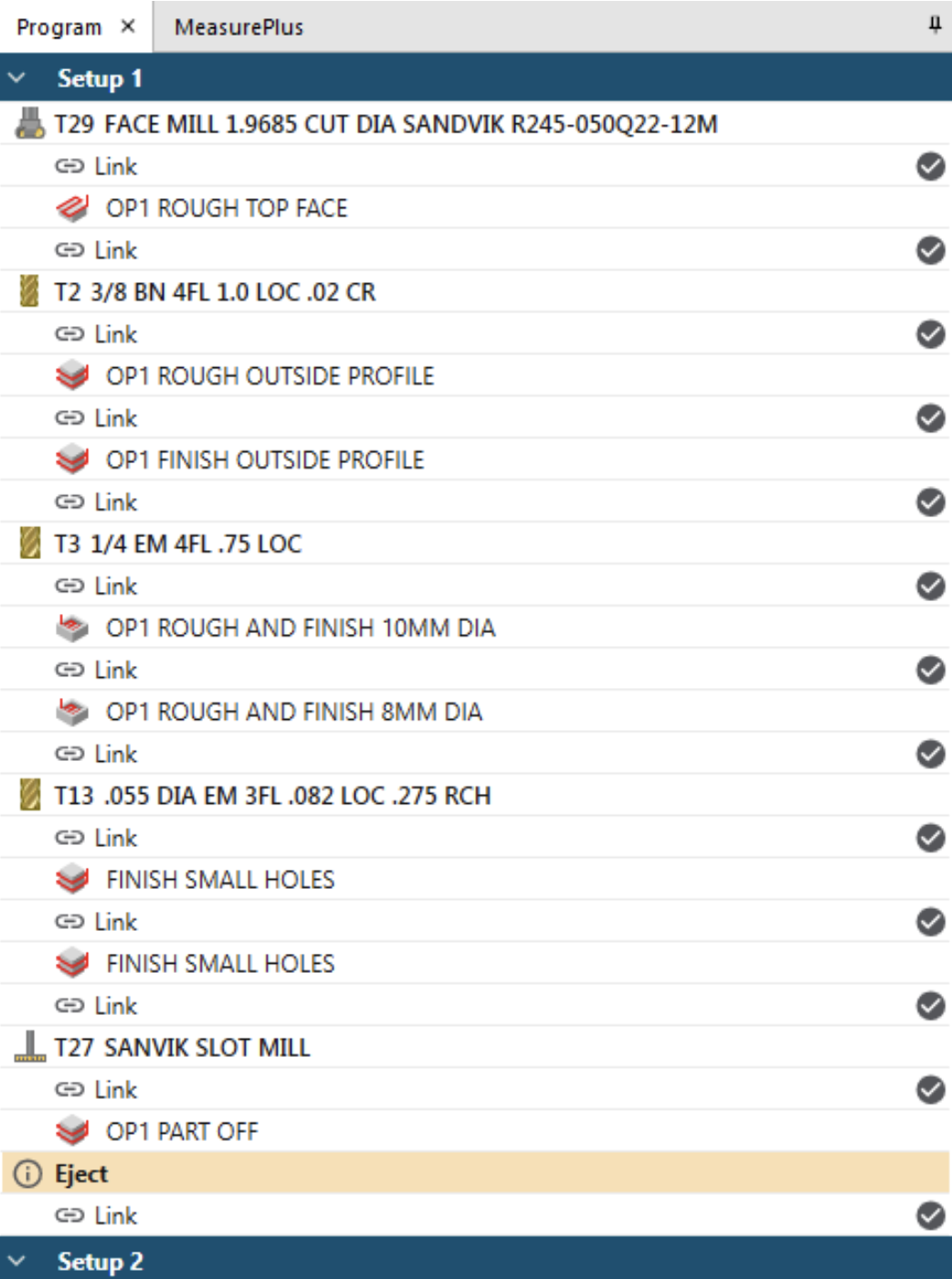
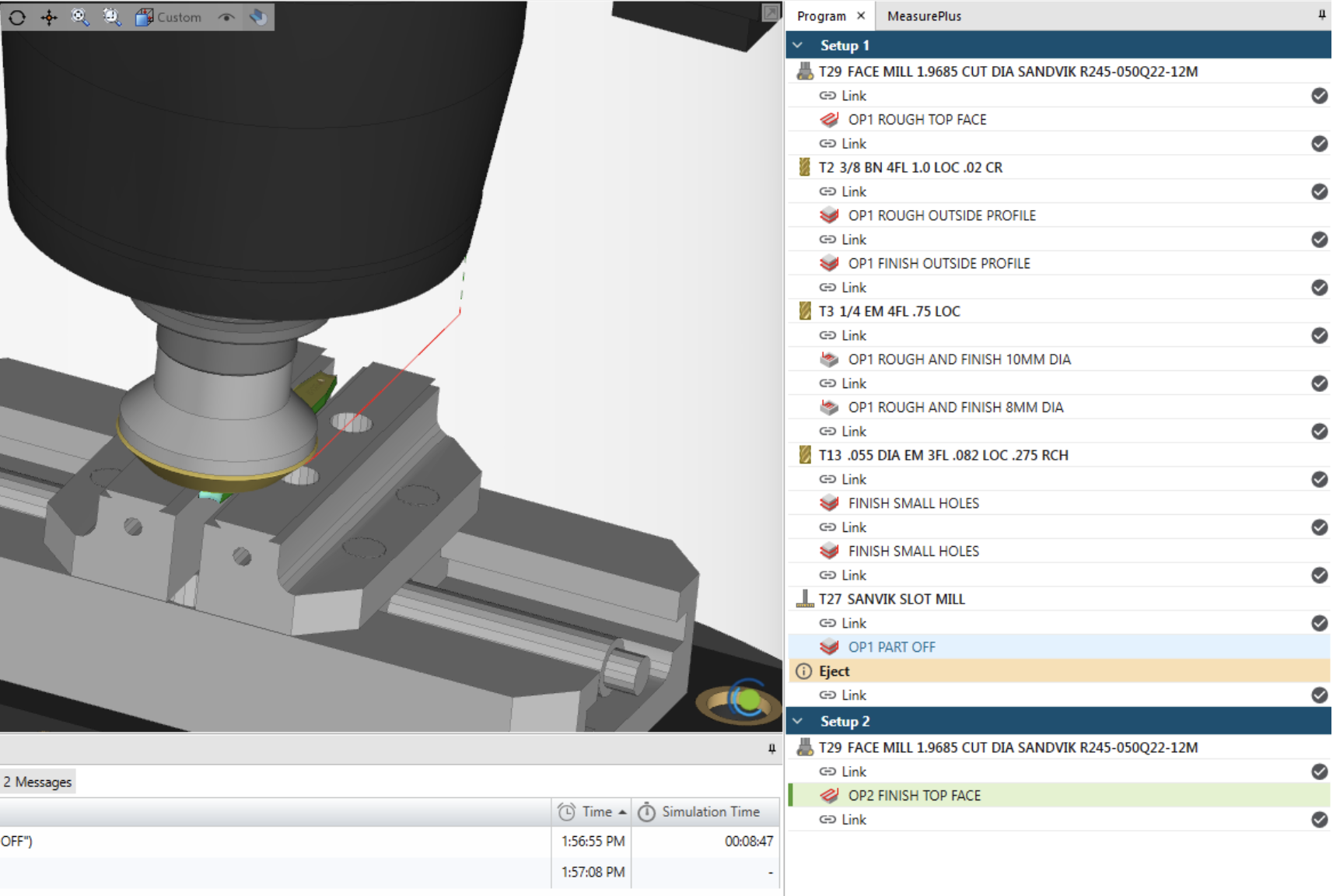
Click the OK button to save the changes and then the OK button again for the changes to reflect in the Program window. At this point, you will see 2 different setups as Setup 1 and Setup 2.
- Programming and Simulation
With the part flipped, it’s time to program the other side. Apply the operations as to the bottom side of the same part model.
The new operations will be added to the Setup 2. You’ll see the new operation start exactly where the Setup 1 left off, with the "remaining stock" perfectly preserved.
Run the simulation to confirm the part flip.
Using the Add Setup option in Esprit Edge is the recommended method when the same part needs to be machined in multiple setups. It allows accurate stock transfer, proper simulation, and clean program structure without creating separate projects.